Every time you read an email, browse a website, or type a document, millions of invisible calculations transform abstract mathematical curves into the crisp letters on your screen. The process—font rendering—is one of computing’s most elegant dances between mathematics, human perception, and hardware constraints. What appears effortless is actually a sophisticated pipeline that has evolved over four decades.
From Infinite Resolution to Finite Pixels
A digital font file doesn’t store pictures of letters. It stores mathematical instructions—specifically, Bézier curves—that describe each glyph’s outline with near-infinite precision. TrueType fonts use quadratic Bézier curves, defined by two endpoints and a single control point. OpenType fonts with CFF (Compact Font Format) outlines use cubic Bézier curves, which offer more flexibility at the cost of complexity.
This vector representation means a font can scale to any size without losing quality. But screens aren’t infinite. A typical 96 DPI display offers roughly 3,686,400 pixels on a 24-inch monitor. The challenge: take a mathematically perfect curve and decide which pixels should be illuminated to approximate it.
The first step is scaling. The font renderer converts abstract “font units” (FUnits) into actual pixel coordinates. The formula is straightforward:
$$\text{pixel\_coordinate} = \frac{\text{em\_coordinate} \times \text{ppem}}{\text{units\_per\_em}}$$Where ppem (pixels per em) represents the effective resolution at the chosen point size. A 12-point character on a 96 DPI display has 16 ppem; the same character on a 300 DPI laser printer has 50 ppem.
The Scan Converter’s Binary Decision
Once scaled, the outline enters the scan converter—the algorithm that determines which pixels belong to the glyph. The classic rule is simple: if a pixel’s center falls inside the outline, it’s turned on. But this simplicity masks complexity.
The scan converter uses the winding number rule to determine whether a point is inside a glyph. Draw a ray from any point toward infinity. Count +1 each time a contour crosses from left to right (an “off” transition), and -1 for right-to-left (an “on” transition). If the final count is non-zero, the point is interior.
At small sizes, this approach produces jagged, aliased edges. A diagonal stem might become a staircase. More critically, features can vanish entirely—a 9-point lowercase “m” might lose one of its three stems because the pixels simply didn’t align with the outline.
Grid-Fitting: Bending the Design to the Pixel Grid
This is where hinting—or grid-fitting—becomes essential. TrueType fonts contain a stack-based bytecode program that runs during rendering. These instructions can move outline points to align with pixel boundaries, ensuring stems remain visible and spacing stays consistent.
The TrueType instruction set includes over 200 opcodes for manipulating outlines. Instructions can align points to the pixel grid, control stem widths, and enforce consistency across glyphs. A well-hinted font at 9 pixels looks radically different from an uninstructed one—the stems are crisp, the counters are open, and the character is recognizable.
The process is called “grid-fitting” because the outline is deliberately distorted to fit the pixel grid. The designer’s intent is preserved, but the geometry changes. This distortion is most aggressive at small sizes on low-resolution screens, where a single pixel can represent 10% or more of a character’s height.
Antialiasing: Trading Sharpness for Smoothness
Antialiasing addresses the jagged edges by using intermediate gray values. Instead of pure black and white, pixels on the boundary are shaded based on their coverage by the glyph outline. A pixel that’s 60% covered by the outline becomes 60% gray.
The improvement in shape accuracy is dramatic. Curves that would be staircases become smooth arcs. But antialiasing introduces a new problem: blur. The gray pixels soften edges, making text look slightly out of focus. At small sizes, the blur can make characters harder to distinguish.

Image source: AlienRyderFlex - Understanding Sub-Pixel Anti-Aliased Font Rendering
Subpixel Rendering: The ClearType Revolution
LCD displays have a secret weapon: each “pixel” is actually three sub-pixels—one red, one green, one blue—arranged horizontally. Traditional rendering treats this triplet as a single unit. Subpixel rendering exploits the separation.
By addressing sub-pixels independently, the effective horizontal resolution triples. A vertical stem can be positioned with one-third-pixel precision. The catch: sub-pixels have color. A white glyph on a black background will show colored fringes when rendered this way. But human vision blends the colors at normal viewing distances, perceiving only increased sharpness.

Image source: AlienRyderFlex - Understanding Sub-Pixel Anti-Aliased Font Rendering
The improvement isn’t a perfect 3× increase. Human eyes don’t perceive brightness equally from all three colors—green contributes most, red somewhat, and blue almost nothing to perceived luminance. The actual benefit is closer to 1.5× horizontally, roughly equivalent to a 1.2× overall resolution boost. Still, the difference is visible, especially on text.
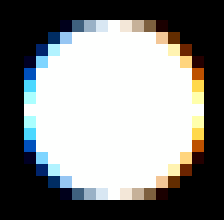
Image source: AlienRyderFlex - Understanding Sub-Pixel Anti-Aliased Font Rendering
Here’s what actually happens with the RGB display elements:
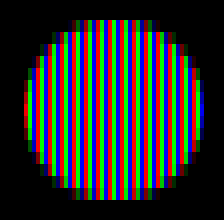
Image source: AlienRyderFlex - Understanding Sub-Pixel Anti-Aliased Font Rendering

Image source: AlienRyderFlex - Understanding Sub-Pixel Anti-Aliased Font Rendering
Two Philosophies: Pixel Grid vs. Design Fidelity
This brings us to a fundamental divide in rendering philosophy. Microsoft’s ClearType aggressively snaps fonts to the pixel grid, prioritizing sharpness and readability. Apple’s approach preserves the designer’s curves more faithfully, accepting some blur.
The difference stems from divergent assumptions. Microsoft optimized for standard 96-120 DPI displays where every pixel counts. Apple anticipated the high-DPI future—Retina displays with 220+ pixels per inch make subpixel rendering largely unnecessary.
Neither approach is wrong. A graphic designer might prefer Apple’s fidelity to the original design. A programmer staring at code for hours might prefer Microsoft’s crisp edges. The debate continues because both philosophies have merit.

Image source: Coding Horror - Font Rendering: Respecting The Pixel Grid
Modern Challenges: Gamma, High-DPI, and Beyond
Subpixel rendering introduces subtle complications. Gamma correction matters: alpha blending should occur in linear color space, but most rendering pipelines work in sRGB. Incorrect gamma makes text too thick or too thin.
Stem darkening compensates for the fact that thin stems can appear washed out at small sizes. FreeType offers this as an optional feature, slightly emboldening glyphs to improve readability on low-DPI screens. It’s controversial—some users prefer the lighter default.
High-DPI displays reduce the need for aggressive hinting and subpixel rendering. At 300+ pixels per inch, the natural curve is often sharper than any grid-fitted approximation. Modern rendering engines like DirectWrite on Windows and Core Text on macOS have adapted, reducing hinting intensity on Retina-class displays while maintaining it for traditional screens.
The Rendering Pipeline in Practice
The complete font rendering pipeline involves several stages working in concert:
-
Font selection: The system chooses a font based on CSS properties or application settings, falling back to substitute fonts when glyphs are missing.
-
Text shaping: Engines like HarfBuzz convert Unicode characters into glyph sequences, handling complex scripts like Arabic and Devanagari where letterforms change based on position.
-
Glyph loading: The font file is parsed, extracting outline data (Bézier curves) and associated metadata.
-
Scaling: Outlines are scaled from FUnits to pixel coordinates based on the requested size and device resolution.
-
Grid-fitting: Hinting instructions (or auto-hinting algorithms) adjust the outline to align with pixel boundaries.
-
Scan conversion: The adjusted outline is rasterized into a bitmap.
-
Antialiasing: For non-monochrome rendering, coverage values are calculated for edge pixels.
-
Subpixel rendering: If enabled, separate values are computed for R, G, and B sub-pixels.
-
Compositing: The final glyph is blended into the target surface.
The Invisible Infrastructure
Font rendering remains one of computing’s unsung foundations. The FreeType library, used in Linux, Android, and countless applications, has been under active development since 1996. HarfBuzz handles text shaping—converting Unicode characters into the correct glyph sequence for complex scripts like Arabic and Devanagari. DirectWrite and Core Text provide modern APIs that handle the full pipeline from font file to screen.
The next time text appears perfectly crisp on your screen, remember: behind that clarity lies 40 years of mathematical innovation, perceptual psychology, and relentless optimization. The pixels didn’t align themselves.
References
- Microsoft Typography. “TrueType Fundamentals (OpenType 1.9).” https://learn.microsoft.com/en-us/typography/opentype/otspec190/ttch01
- Gibson Research Corporation. “How Sub-Pixel Font Rendering Works.” https://www.grc.com/ctwhat.htm
- AlienRyderFlex. “Understanding Sub-Pixel (LCD Screen) Anti-Aliased Font Rendering.” https://alienryderflex.com/sub_pixel/
- Coding Horror. “Font Rendering: Respecting The Pixel Grid.” https://blog.codinghorror.com/font-rendering-respecting-the-pixel-grid/
- FreeType Project. “The FreeType Auto-Hinting pages.” https://freetype.org/autohinting/background.html
- Microsoft Learn. “DirectWrite (DWrite).” https://learn.microsoft.com/en-us/windows/win32/directwrite/direct-write-portal
- HarfBuzz. “HarfBuzz Text Shaping Engine.” https://github.com/harfbuzz/harfbuzz
- DamienG. “Font rendering philosophies of Windows & Mac OS X.” https://damieng.com/blog/2007/06/13/font-rendering-philosophies-of-windows-and-mac-os-x/
- Simon Cozens. “A Brief History of Type.” https://simoncozens.github.io/fonts-and-layout/history.html
- Warp Blog. “Adventures in Text Rendering: Kerning and Glyph Atlases.” https://www.warp.dev/blog/adventures-text-rendering-kerning-glyph-atlases